Last Updated on December 29, 2025 by Luxe
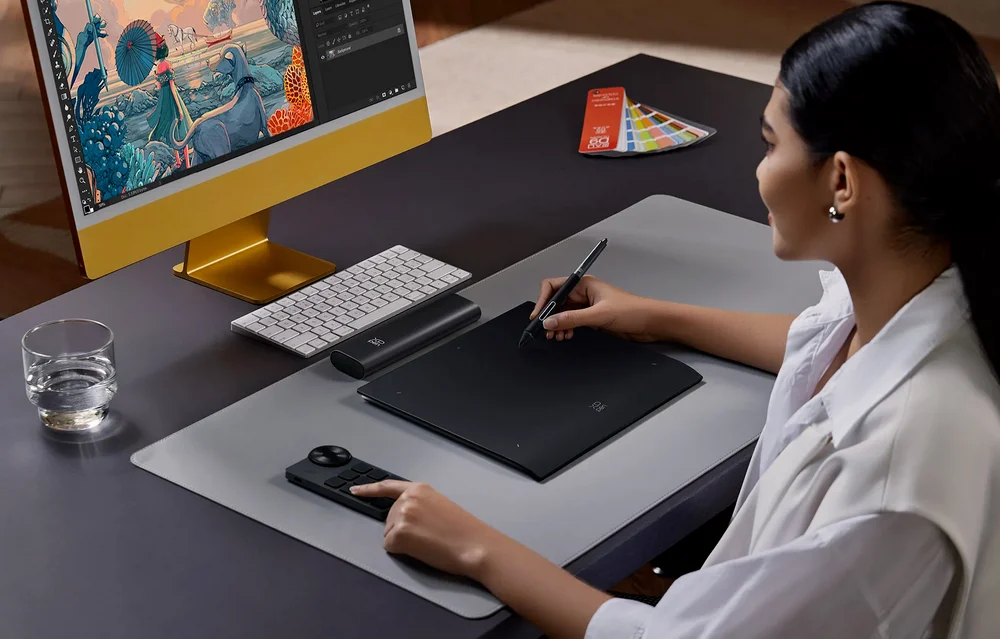
Whether you are a digital illustrator, concept artist, animator or creative professional, being able to use a superb drawing tablet that works well with Mac can simply make your workflow easier and faster. Mac systems — from the compact. When deciding on the best drawing tablet for Mac, it all boils down to how you create. For professional color work and micro-precision, larger pen displays (such as the Artist Pro 16 or Artist 22 Plus) are the show stoppers. If space or portability are your top concerns, there are some compact choices like the Deco 01 V2 and Star G960S, which punch above their weight. Whether you’re drawing, designing, or animating on your Mac — your best options among available XPPen tablets are those that not only connect naturally with the system but offer capable performance and driver support. Mac Studio to slimline MacBook lines – are incredibly well-suited for creative applications like Adobe Photoshop, Illustrator and Procreate (with an iPad/Mac workflow). But if you really want to empower your creative side, nothing less than the best drawing tablet for Mac with precision, responsiveness, color accuracy and control is required.
Below, we will take you through some of the best XPPen drawing tablets and how they pair with Mac systems, helping you choose a device that fits your creative practice and budget.
Why Tablet Compatibility Matters on Mac
Mac users tend to select Apple hardware for its reputable stability, color-accurate displays and specialist creative software that are industry-standard tools. However, not all drawing tablets connect or perform as well with macOS. Some key factors to consider when pairing a tablet with Mac include:
- Driver and OS compatibility: Make sure the device supports the current macOS version. XPPen drivers are compatible with macOS 10.10and later, and have been updated for this new macOS version.
- Stylus quality: Pressure sensitivity and tilt support directly influence how natural your lines and shading feel.
- Color performance: For drawing and design, strong color accuracy and resolution ensure that what you draw on-screen matches the output.
- Workflow integration: Shortcuts, touch controls and wireless operation can make complex design work more efficient.
Below are some standout drawing tablets that work exceptionally well with Macs, ranging from affordable pen tablets to professional pen displays.
1. XPPen Artist Pro 16 (Gen 2) – Pro-Level Display for Mac
If you’re looking for a high-end drawing tablet for Mac, the XPPen Artist Pro 16 (Gen 2) strikes a perfect balance between performance and price.
🔑 Highlights
- Display: 15.4-inch Full HD (1920×1080) IPS screen
- Stylus: X3 Pro Smart Chip Stylus (16,384 pressure levels and 60°s tilt support)
- Resolution: 2560×1600 (2.5K) for quality of detail
- Compatibility: macOS (10.10+) and major creative software
- Price: Typically around $449.99–$599.99 depending on promotions
This is an extremely useful model in case with illustration, concept art and detailed painting. Its color accuracy and stylus responsiveness rival many higher-end competitors, making it a strong choice for creative pros on Mac.
2. XPPen Artist 22 Plus – Large Canvas for Creative Freedom
It’s not as much of an issue if screen real estate is important to you, be it for complex arrangements, multitasking or branching diagrams the XPPen Artist 22 Plus grants you a generous visual space.
📊 Specifications
| Feature | Details |
| Display Size | 21.5″ |
| Pressure Sensitivity | 16,384 (X3 Pro Smart Chip Stylus) |
| Color Gamut | 130% sRGB |
| Resolution | Full HD |
| Compatibility | macOS (10.10+) |
| Price Range | ~$401.49–$549.99 |
The large screen combined with high pressure levels and strong sRGB coverage accommodates intricate drawings, storyboarding and layered fanzine-style designs. The X3 Pro Smart Chip Stylus has precision that comes in handy when working in Mac workflows with more advanced software like Adobe Creative Cloud or Clip Studio Paint.
3. XPPen Artist 24 Pro (2K QHD)– Immersive Experience for Mac Creators
For very immersive visuals and more workspace, the Artist 24 Pro (2K QHD) provides a large pen display with great color accuracy — ideal for pro-grade Mac users who create detailed illustrations or video storyboards.
📌 Core Specs
- 23.8″ 2K QHD Display (2560×1440) with wide color gamut (Adobe RGB, sRGB)
- Battery-free Stylus with up to 60° tilt support and 8192 pressure levels
- USB-C to USB-C connectivity for modern Mac systems
- Compatibility: Mac OS X (10.10+)
Though larger and more suited to dedicated workstations than portability, this model gives Mac artists a true “digital canvas” feel. Whether you’re drawing environments or crafting editorial pieces, the additional screen real estate simply ups productivity.
4. XPPen Deco 01 V3 – Affordable Graphics Tablet for Mac
You don’t need an out-of-the-box screen for one of the best drawing tablets for Mac. The XPPen Deco 01 V3 is a solid pick if you’re an artist who already uses an external display and are looking for a cost-effective pen tablet.
📋 Key Features
- USB wired for fast, reliable performance
- Battery-free stylus with customizable shortcut keys
- 8,192 levels of pressure sensitivity with tilt recognition
- Extensive compatibility with macOS and major creative software
Because of its slim design and large active area, the Deco 01 V3 complements portable Macs like the MacBook Air and MacBook Pro, particularly in small workstations. With its simple-to-use design and responsive pen, it is ideal for sketching & drawing, photo editing, or general graphic design work.
5. XPPen Star G640 – Beginner-Friendly Option for Mac
If you’re new to digital drawing or want a no-frills, budget-friendly tablet for macOS, the XPPen Star G640 is an all american budget choice.
📊 Specs (General)
- Compact active drawing area (approx. 6 × 4 inches)
- Battery-free stylus with 8,192 levels of pressure sensitivity
- Lightweight and portable design
- Multi-platform compatibility, including macOS
The Star G640 is a lightweight tablet built solely for simplicity and portability, the perfect starter tablet for beginners, students or those looking to have a lightweight digital drawing pad that they can use on the go or with a Mac. Its plug ‘n’ play install means you can start recording the moment it arrives, no extra tweaking needed.
Comparison Table: Drawing Tablets for Mac Systems
| Model | Type | Screen | Stylus Pressure | Best For |
| XPPen Artist Pro 16 (Gen 2) | Pen Display | 15.4″ Full HD | 16,384 | Professional illustration |
| XPPen Artist 22 Plus | Pen Display | 21.5″ Full HD | 16,384 | Large canvas creative work |
| XPPen Artist 24 Pro (2K QHD) | Pen Display | 23.8″ 2K | 8,192 | Immersive desktop creation |
| XPPen Deco 01 V3 | Pen Tablet | N/A | 8,192 | Portable graphics tablet |
| XPPen Star G640 | Pen Tablet | N/A | 8,192 | Entry-level drawing for beginners |
Using Drawing Tablets Smoothly on macOS
To get the best experience on Mac, you’ll need to:
- Install the latest XPPen driver for macOS so pressure sensitivity and shortcut buttons work properly.
- Use software that supports pressure sensitivity, such as Adobe Photoshop, Illustrator or Clip Studio Paint.
- If connecting via USB-C, consider adapters for newer Macs with limited ports.
Once set up, these tablets slot seamlessly into creative workflows, allowing you to draw directly into your Mac software with minimal latency.
Final ThTop Drawing Tablets That Pair Perfectly With Mac Systems
Whether you are a digital illustrator, concept artist, animator or creative professional, being able to use a superb drawing tablet that works well with Mac can simply make your workflow easier and faster. Mac systems — from the compact. When deciding on the best drawing tablet for Mac, it all boils down to how you create. For professional color work and micro-precision, larger pen displays (such as the Artist Pro 16 or Artist 22 Plus) are the show stoppers. If space or portability are your top concerns, there are some compact choices like the Deco 01 V2 and Star G960S, which punch above their weight. Whether you’re drawing, designing, or animating on your Mac — your best options among available XPPen tablets are those that not only connect naturally with the system but offer capable performance and driver support. Mac Studio to slimline MacBook lines – are incredibly well-suited for creative applications like Adobe Photoshop, Illustrator and Procreate (with an iPad/Mac workflow). But if you really want to empower your creative side, nothing less than the best drawing tablet for Mac with precision, responsiveness, color accuracy and control is required.
Below, we will take you through some of the best XPPen drawing tablets and how they pair with Mac systems, helping you choose a device that fits your creative practice and budget.
Why Tablet Compatibility Matters on Mac
Mac users tend to select Apple hardware for its reputable stability, color-accurate displays and specialist creative software that are industry-standard tools. However, not all drawing tablets connect or perform as well with macOS. Some key factors to consider when pairing a tablet with Mac include:
- Driver and OS compatibility: Make sure the device supports the current macOS version. XPPen drivers are compatible with macOS 10.10and later, and have been updated for this new macOS version.
- Stylus quality: Pressure sensitivity and tilt support directly influence how natural your lines and shading feel.
- Color performance: For drawing and design, strong color accuracy and resolution ensure that what you draw on-screen matches the output.
- Workflow integration: Shortcuts, touch controls and wireless operation can make complex design work more efficient.
Below are some standout drawing tablets that work exceptionally well with Macs, ranging from affordable pen tablets to professional pen displays.
1. XPPen Artist Pro 16 (Gen 2) – Pro-Level Display for Mac
If you’re looking for a high-end drawing tablet for Mac, the XPPen Artist Pro 16 (Gen 2) strikes a perfect balance between performance and price.
🔑 Highlights
- Display: 15.4-inch Full HD (1920×1080) IPS screen
- Stylus: X3 Pro Smart Chip Stylus (16,384 pressure levels and 60°s tilt support)
- Resolution: 2560×1600 (2.5K) for quality of detail
- Compatibility: macOS (10.10+) and major creative software
- Price: Typically around $449.99–$599.99 depending on promotions
This is an extremely useful model in case with illustration, concept art and detailed painting. Its color accuracy and stylus responsiveness rival many higher-end competitors, making it a strong choice for creative pros on Mac.
2. XPPen Artist 22 Plus – Large Canvas for Creative Freedom
It’s not as much of an issue if screen real estate is important to you, be it for complex arrangements, multitasking or branching diagrams the XPPen Artist 22 Plus grants you a generous visual space.
📊 Specifications
| Feature | Details |
| Display Size | 21.5″ |
| Pressure Sensitivity | 16,384 (X3 Pro Smart Chip Stylus) |
| Color Gamut | 130% sRGB |
| Resolution | Full HD |
| Compatibility | macOS (10.10+) |
| Price Range | ~$401.49–$549.99 |
The large screen combined with high pressure levels and strong sRGB coverage accommodates intricate drawings, storyboarding and layered fanzine-style designs. The X3 Pro Smart Chip Stylus has precision that comes in handy when working in Mac workflows with more advanced software like Adobe Creative Cloud or Clip Studio Paint.
3. XPPen Artist 24 Pro (2K QHD)– Immersive Experience for Mac Creators
For very immersive visuals and more workspace, the Artist 24 Pro (2K QHD) provides a large pen display with great color accuracy — ideal for pro-grade Mac users who create detailed illustrations or video storyboards.
📌 Core Specs
- 23.8″ 2K QHD Display (2560×1440) with wide color gamut (Adobe RGB, sRGB)
- Battery-free Stylus with up to 60° tilt support and 8192 pressure levels
- USB-C to USB-C connectivity for modern Mac systems
- Compatibility: Mac OS X (10.10+)
Though larger and more suited to dedicated workstations than portability, this model gives Mac artists a true “digital canvas” feel. Whether you’re drawing environments or crafting editorial pieces, the additional screen real estate simply ups productivity.
4. XPPen Deco 01 V3 – Affordable Graphics Tablet for Mac
You don’t need an out-of-the-box screen for one of the best drawing tablets for Mac. The XPPen Deco 01 V3 is a solid pick if you’re an artist who already uses an external display and are looking for a cost-effective pen tablet.
📋 Key Features
- USB wired for fast, reliable performance
- Battery-free stylus with customizable shortcut keys
- 8,192 levels of pressure sensitivity with tilt recognition
- Extensive compatibility with macOS and major creative software
Because of its slim design and large active area, the Deco 01 V3 complements portable Macs like the MacBook Air and MacBook Pro, particularly in small workstations. With its simple-to-use design and responsive pen, it is ideal for sketching & drawing, photo editing, or general graphic design work.
5. XPPen Star G640 – Beginner-Friendly Option for Mac
If you’re new to digital drawing or want a no-frills, budget-friendly tablet for macOS, the XPPen Star G640 is an all american budget choice.
📊 Specs (General)
- Compact active drawing area (approx. 6 × 4 inches)
- Battery-free stylus with 8,192 levels of pressure sensitivity
- Lightweight and portable design
- Multi-platform compatibility, including macOS
The Star G640 is a lightweight tablet built solely for simplicity and portability, the perfect starter tablet for beginners, students or those looking to have a lightweight digital drawing pad that they can use on the go or with a Mac. Its plug ‘n’ play install means you can start recording the moment it arrives, no extra tweaking needed.
Comparison Table: Drawing Tablets for Mac Systems
| Model | Type | Screen | Stylus Pressure | Best For |
| XPPen Artist Pro 16 (Gen 2) | Pen Display | 15.4″ Full HD | 16,384 | Professional illustration |
| XPPen Artist 22 Plus | Pen Display | 21.5″ Full HD | 16,384 | Large canvas creative work |
| XPPen Artist 24 Pro (2K QHD) | Pen Display | 23.8″ 2K | 8,192 | Immersive desktop creation |
| XPPen Deco 01 V3 | Pen Tablet | N/A | 8,192 | Portable graphics tablet |
| XPPen Star G640 | Pen Tablet | N/A | 8,192 | Entry-level drawing for beginners |
Using DraFinal Thoughts
wing Tablets Smoothly on macOS
To get the best experience on Mac, you’ll need to:
- Install the latest XPPen driver for macOS so pressure sensitivity and shortcut buttons work properly.
- Use software that supports pressure sensitivity, such as Adobe Photoshop, Illustrator or Clip Studio Paint.
- If connecting via USB-C, consider adapters for newer Macs with limited ports.
Once set up, these tablets slot seamlessly into creative workflows, allowing you to draw directly into your Mac software with minimal latency.
Final Thoughts
When deciding on the best drawing tablet for Mac, it all boils down to how you create. For professional color work and micro-precision, larger pen displays (such as the Artist Pro 16,, Artist 22 Plus, or Artist 24 Pro (2K QHD)) are the show stoppers. If space or portability are your top concerns, there are some compact choices like the Deco 01 V3 and Star G640, which punch above their weight. Whether you’re drawing, designing, or animating on your Mac—your best options among available XPPen tablets are those that not only connect naturally with the system but offer capable performance and driver support.
Whether you’re sketching concept art, painting digital illustrations, or editing graphics, the right drawing tablet can help you work more intuitively and productively with your Mac.oughts
When deciding on the best drawing tablet for Mac, it all boils down to how you create. For professional color work and micro-precision, larger pen displays (such as the Artist Pro 16,, Artist 22 Plus, or Artist 24 Pro (2K QHD)) are the show stoppers. If space or portability are your top concerns, there are some compact choices like the Deco 01 V3 and Star G640, which punch above their weight. Whether you’re drawing, designing, or animating on your Mac—your best options among available XPPen tablets are those that not only connect naturally with the system but offer capable performance and driver support.
Whether you’re sketching concept art, painting digital illustrations, or editing graphics, the right drawing tablet can help you work more intuitively and productively with your Mac.